When a product gets cheaper as the quantity goes up, shoppers want to know two things: what one item costs, and what their whole selection costs. WooCommerce shows a single price near the product title, so customers either do the math themselves or wonder whether the quantity offer applies at all. That is usually why store owners look for a way to show price per quantity in WooCommerce.
This guide uses Dynamic Pricing to fix that. By the end, your product pages will show a unit price and a quantity total that update as the customer changes the quantity or variation, with the original price crossed out when a lower price applies. The unit price will also appear at checkout, in a design that fits your theme.
What you need
- WordPress 6.5 or later, WooCommerce 8.2 or later, and PHP 8.1 or later.
- Dynamic Pricing, with its license activated on your site.
- A source for the quantity prices. Dynamic Pricing displays prices; it does not create or apply discounts. The supported source is Dynamic Discounts, version 1.1.0 or later, which needs PHP 8.2 or later. Developers can also connect their own pricing provider through the plugin’s documented provider API.
Without a pricing provider, the display still works with WooCommerce’s own product price. It shows the unit price and the total for the selected quantity, but there is no discount to show.
Step 1: Install the plugin and activate your license
Upload the plugin ZIP from Plugins → Add New Plugin → Upload Plugin and activate it. Then open UFP → Dynamic Pricing, go to the License tab, enter your key, and click Activate license.
The settings screens are always available, but the storefront price displays stay off until the license is active. Until then, shoppers see the normal WooCommerce price.
Step 2: Create the quantity offer and check the pricing source
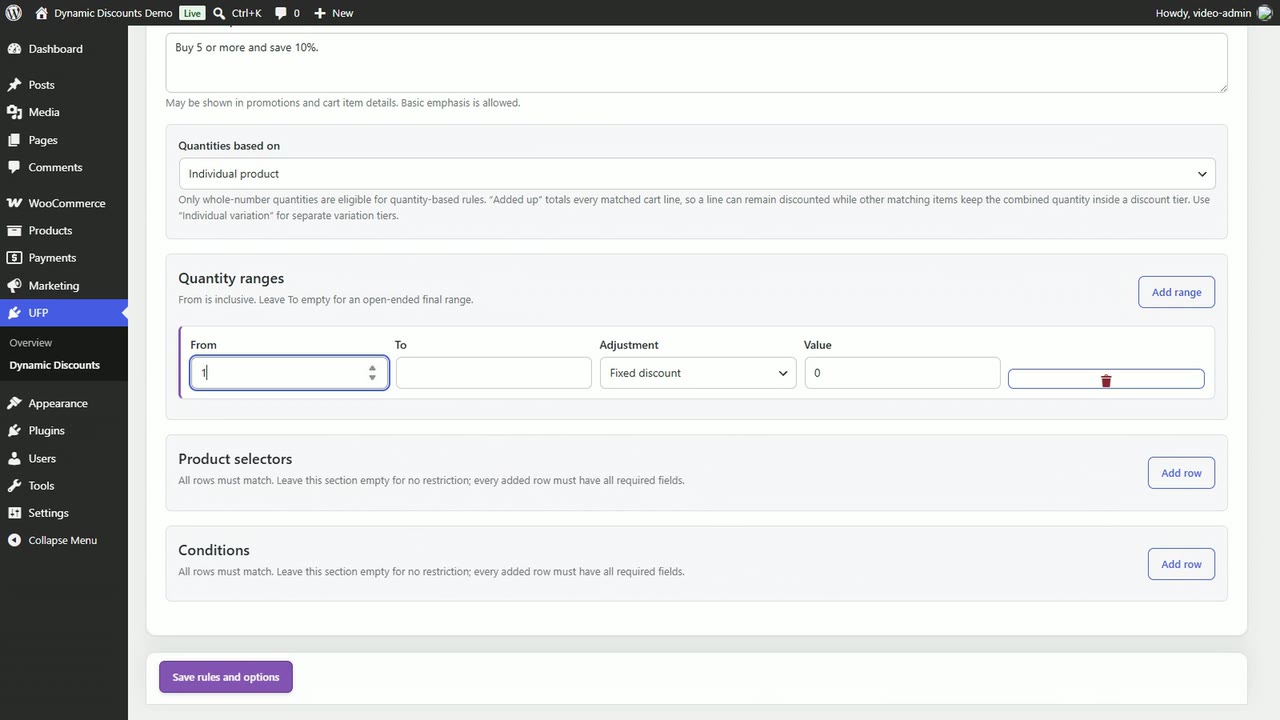
Create the quantity rule in Dynamic Discounts first. The video uses a simple example: a product with a €25 unit price and a 10% discount from five units. At five items, the unit price becomes €22.50 and the total is €112.50.
Next, open the Integrations tab in UFP → Dynamic Pricing. Leave Preferred pricing provider on Automatic (recommended). Automatic uses Dynamic Discounts when it is active and enabled, and falls back to the native WooCommerce price when it is not. This tab also shows whether WooCommerce and Dynamic Discounts are installed and active, with their versions. Enable UFP Dynamic Discounts integration is on by default.
Step 3: Make the savings visible
Open the Settings tab. In the Price fields section, Show unit price, Show total price and Show crossed-out original price when discounted are already on.
To explain the saving at a glance, turn on Show discount percentage after the current price. You can change the wording in Discount percentage format. Keep the {discount} placeholder where the number should appear, as in the default (Discount {discount}%).
Step 4: Label the prices and choose where they appear
In the Labels section, set the Unit price label and Total price label to words your customers will recognize. Keep Show unit price in classic and block checkout on so the unit price stays visible while customers review their order, and set the Checkout unit price label.
Back in Price fields, Product-page position decides where the display sits. The options are After add-to-cart button (the default), Before add-to-cart button, After add-to-cart form, and Manual placement via shortcode. For manual placement, add [ufp_dynamic_pricing] to your product layout. In a block theme’s Single Product template, insert the Dynamic Price Display block and choose Both, Unit or Total.
Click Save changes.
Step 5: Style the display
Open the Styling tab. Four preset buttons give you a quick starting point: Theme native, Clean, Highlight card and Compact. Try Highlight card for a price card that stands out, or Compact for a tighter layout. Presets only fill in the form, so you can compare them freely before anything goes live.
From there, fine-tune the Colors, Typography, Spacing, and Container and layout sections. If you would rather let your theme set the colors and type, choose Minimal in Presentation preset.
The Live preview shows both the product page and checkout versions. Set Preview width to 320 px or 240 px to see how the display fits a narrow product column. When it looks right, click Save changes to apply the design to your storefront.
Step 6: Check the product page and checkout
Open a product that has the quantity rule. In the video, four bottles show a €25 unit price and a €100 total. At five bottles, the unit price falls to €22.50, with the original price crossed out beside it.
Add the product to the cart and go to checkout. Each line shows the unit price under your checkout label, in both Classic Checkout and the Checkout Block, so the order is easy to review. Coupon reductions stay in WooCommerce’s own coupon rows.
Before you call it done, test the quantities just below, at and above each threshold, and try every option of a variable product. If the same product is already in the cart, that quantity can change which price applies, depending on how your rule counts items. The cart total is the final word, so compare the display with it.
Good to know
- Dynamic Pricing explains prices; it does not set them. Your pricing provider and WooCommerce calculate the cart and the order.
- It does not replace cart, mini-cart, or order line totals.
- If a provider is missing, incompatible or returns invalid data, the display falls back to the native WooCommerce price instead of guessing.
- Cache-safe mode is on by default, so a cached product page does not carry one customer’s personalized price to another. After changing rules or display settings, purge your page, CDN and browser caches.
Frequently asked questions
Does Dynamic Pricing create quantity discounts by itself?
No. It displays the price that WooCommerce or a supported pricing provider calculates. To create bulk or tiered quantity offers, use Dynamic Discounts or another provider connected through the plugin’s provider API.
Can I hide the regular WooCommerce price so only the unit price and total show?
Yes. In Settings → Price fields, turn on Hide default WooCommerce price. It hides the main price under the product title on in-stock, purchasable simple and variable products while a unit or total row is on. The option is off by default. Catalog, cart, checkout and selected-variation prices stay visible, and sold-out, grouped, and external products keep their normal price.
Does it work with variable products and block themes?
Yes. The unit price and total follow the selected variation and quantity. Classic product templates use the automatic positions or the shortcode, and block-based Single Product templates use the Dynamic Price Display block.
Will customers see the unit price at checkout?
Yes, when Show unit price in classic and block checkout is on. It works in both Classic Checkout and the Checkout Block and uses the price applied to the cart line.